What do the Binder Settings control?
Designer credit, yardage rounding, the cover's size box and project type, the project name, and sew-along labels: the settings for how your pattern prints.
StitchBlock Binder Tour: Patterns, Cut Sheets, Templates & More Watch on YouTube, bigger and with chapters
Open the Binder from the left rail and tap the Binder Settings button. Each change shows in your documents right away, and Undo takes it back. There are three groups.
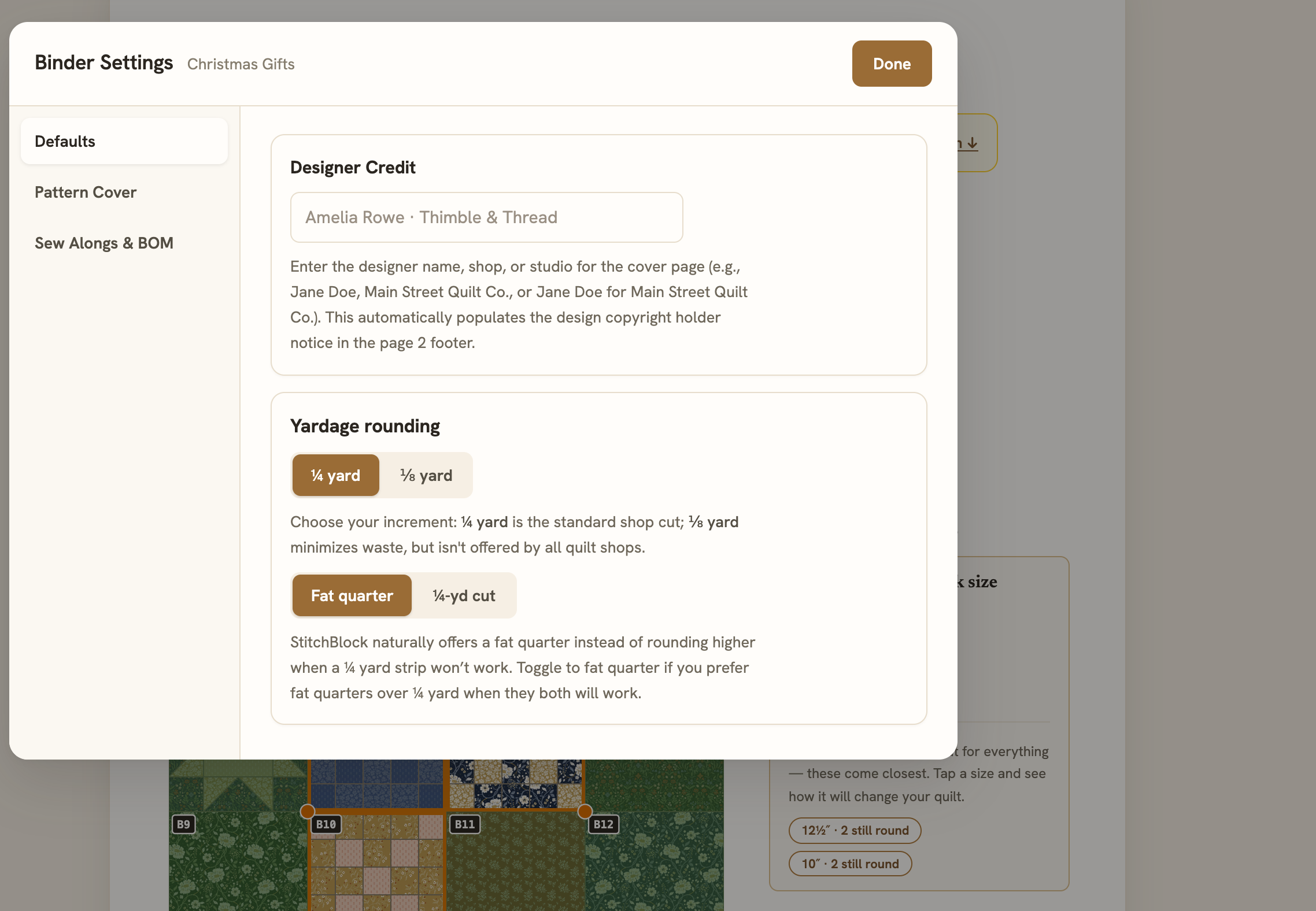
Defaults
Designer Credit prints your name, shop, or studio on the cover and fills in the copyright notice in the page 2 footer. Yardage rounding sets the step the Supply List rounds to. ¼ yard is the standard shop cut. ⅛ yard minimizes waste, but isn’t offered by all quilt shops.
The fat quarter preference chooses which cut the Supply List starts from when either a fat quarter or a ¼-yard strip would work. A fat quarter is offered when everything a print cuts fits in one. That means its block pieces, a paper-pieced block’s rough cuts included, and its small setting pieces: the piano keys, corner squares and cornerstones. A print that also cuts sashing strips, a plain border, binding or backing buys yardage.
Pattern Cover
This group sets what prints on the cover of the pattern you hand off, sell, or kit. The Size box takes a preset or a name of your own, such as Doll Quilt or Tree Skirt.
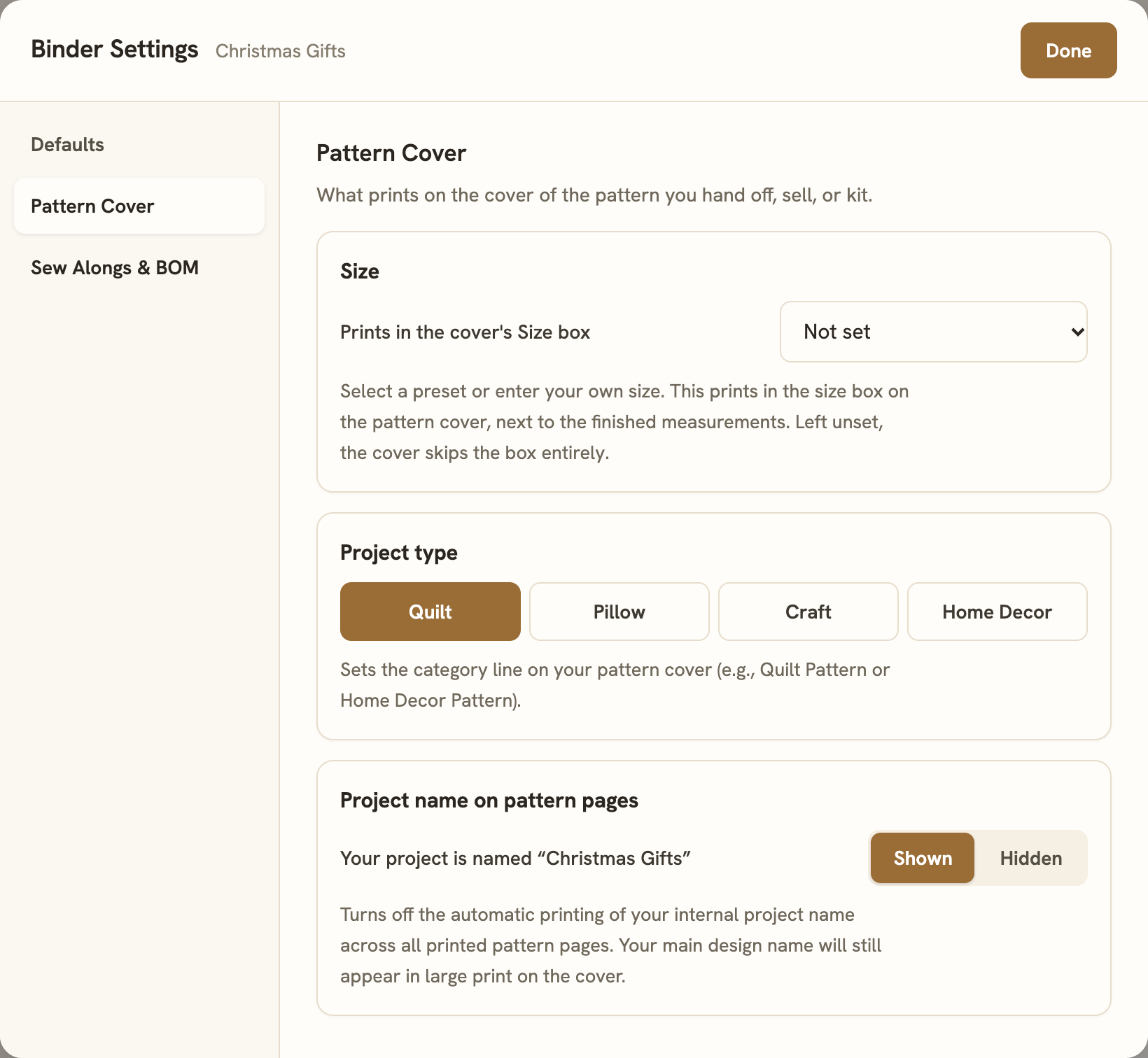
Project type is Quilt, Pillow, Craft or Home Decor. It sets the line on the cover, such as Quilt Pattern or Home Decor Pattern. It also names two Binder tabs: on a Pillow project, Quilt Map and Quilt Label read Pillow Map and Pillow Label. Project name on pattern pages is Shown or Hidden. The design name is always in large print on the cover either way. See: What’s the difference between a project and a design?
Sew Alongs & BOM
This group is for a block of the month or a sew-along. Type an installment label, such as January 2026 or Block 1. It prints on the Pattern cover and on the Sew Along Yardage Guide. It also prints at the top of every Cut Sheet page: each Block Cut Sheet, Borders & Setting, and Backing, Batting & Binding. A project has one label, so change it before you print each part. Leave it blank for standalone patterns. The same group has the Print / Save the Yardage Guide… button.
For what each printed document is, see Which document is which?