Frame a block with coping strips
Plain strips sewn around a block inside its cell. You pick the sides, the rounds and the widths. The block gets smaller to make room, and the pattern counts every strip.

StitchBlock Coping & Framing: Fix Blocks & Build Log Cabins Watch on YouTube, bigger and with chapters
Coping strips are plain fabric strips you sew around a block. Use them as a design, with a small block floating inside rounds of strips. Or use them the traditional way, to fill out a cell so a special block fits your quilt.
Coping keeps the cell and makes the block inside smaller. Framing keeps the block and makes the quilt’s block size bigger. Your quilt stays the same size. To make your blocks bigger instead, see Frame a block.
Add coping strips
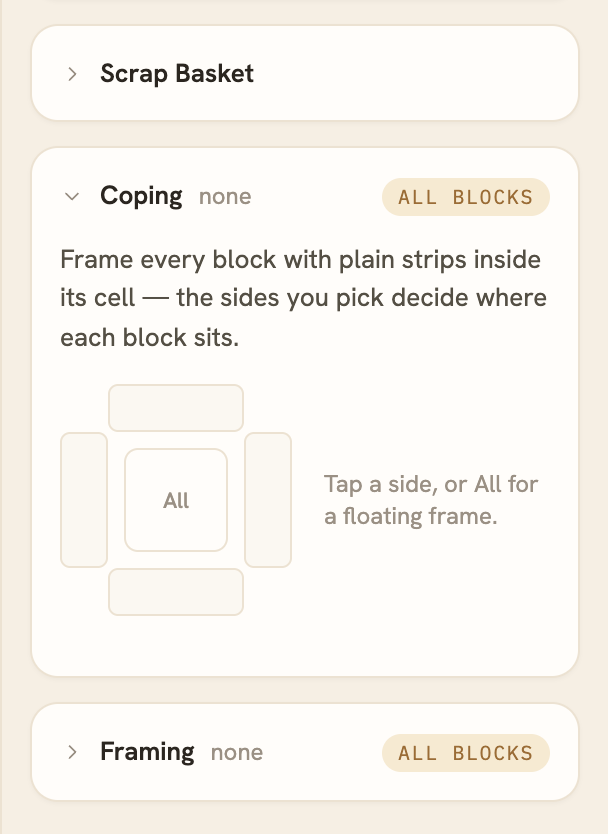
Place a block on your quilt and open the Coping card on the SmartBlock tab. The card is not offered on On Point or one-patch quilts.
Choose which blocks get the strips. Tap a block and the pill on the card reads Selected block: you cope that block only. Tap empty space and it reads All blocks: you cope every placed block alike. On a Single Block quilt it reads The quilt’s block, and the strips go inside the quilt center.
Tap the sides of the little square, or tap All for a floating frame. The sides you pick decide where your block sits. All four sides: it floats in the center. Left and top only: it slides to the bottom right of its cell, good for a picture block that belongs in a corner. One side pushes it to the opposite edge.
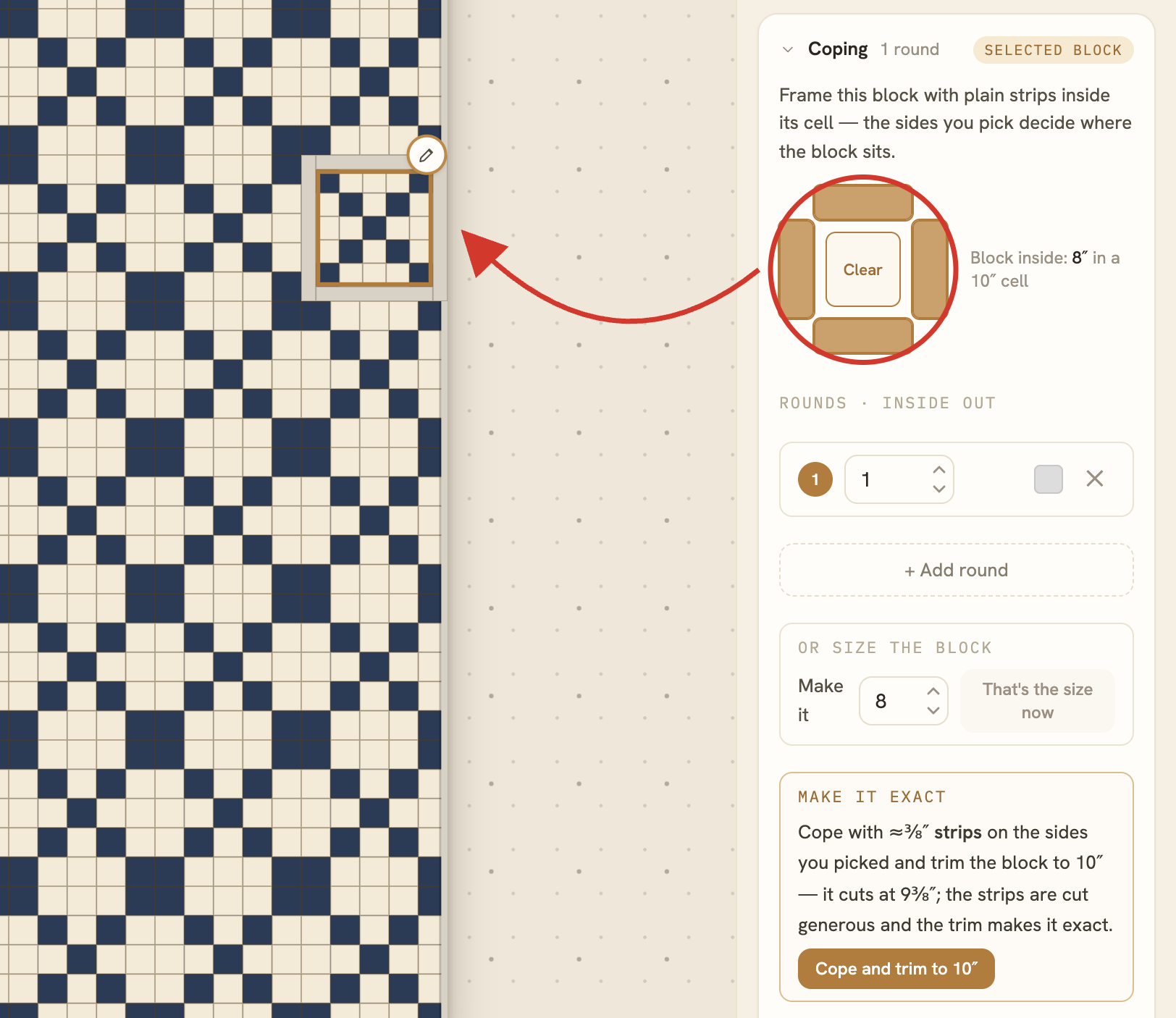
Set the rounds. Your first tap adds one 1″ round. Tap + Add round for more, up to four, and give each round its own width in ¼″ steps. The card lists the rounds inside out and shows your block’s size as you go: Block inside: 10″ in a 12″ cell.
Make it exact
When a block’s cuts round at its size, the Coping card can find the strips that fix it. Make it exact shows only after you tap a block, or on a Single Block quilt. It does not show under All blocks.
Tap the block that rounds. Make it exact names the narrowest strips that work: the largest size the block cuts exactly at, with at least ¼″ of strip on every coped side.
Tap the button in that row. When the strip width is on a ⅛″ ruler mark, the button names it, such as Cope with ¾″ strips, and your strips cut exact. Otherwise it names your cell size, such as Cope and trim to 12″. Your strips cut a little generous, and the pattern adds one line: trim the block to its cell size after the strips are on. The trim is what makes it exact.
You get the same fix on that block’s card on the Binder’s SmartBlock Review tab. A rotary-cut star copes and trims. The block comes out exact at its cell, its own pieces still round, and its FPP papers stay the exact way to make them.
The card looks for an exact size with strips up to 6″ wide. That is enough for a 2½″ strip, or for a panel that comes up short of its space. At 1″ strips it suggests Paper Foundation Piecing when your block has papers. At 2″ it says so strongly, because a 2″ coping strip makes a noticeable difference between blocks.
Paint the strips
Arm a fabric in the Fabrics panel and tap a strip on the quilt. Each strip paints on its own, so opposite sides and alternating rounds can each have their own fabric. With the paint pill on Matching blocks, one tap colors that same strip on every block where it shows the same fabric.
Take the coping off
Tap the coped block, open the Coping card, and tap its lit sides off. With all four sides lit, the middle button reads Clear and takes the coping off in one tap. Your block returns to its full cell size.
Coping added by SmartBlock’s Fix my quilt goes on as one step. Right afterward, one Undo takes the whole fix back: every block’s coping, and the size change if there was one.
Coping inside a frame
You can cope a framed block too. The coping sits inside the frame, so you can cope a block that rounds to an exact center and then frame it. Make it exact finds the strips inside the frame’s inner size. The Coping card and the Framing card show the same size line: 6⅛″ blocks · coped to 6½″ · 1 round · 8½″ framed.
Your pattern prints a Coping strips band, then a Frame strips band, and sews the coping first. When the coping trims, you trim the coped block, the size the frame goes around.
The pattern counts every strip
Your block’s cutting section gets a Coping strips band, with one row for each strip size and fabric. The assembly gets a labeled step that sews the rounds on in log cabin order, with pictures of the coped block as sewn and exploded. Its check line gives the size your coped block should measure.
When the coping trims, the strips print a little wider and 1″ longer. The picture shows the trim line, and the assembly step ends with the trim: trim the block to the cell size, keeping the piecing centered.
The SmartBlock note, the Review tab and the Exact-Cut advice all go by your block’s inner size, because that is the size its pieces are cut at. A block that is coped and trimmed counts as exact at its cell.
When the coping pauses
Two things pause coping. A block that must be cut square pauses when the sides you picked would make it a rectangle, as one side alone does. Pick all four sides, or two that meet at a corner. Rounds too wide for the cell also pause, until you bring the widths down.
Paused coping is set aside in the quilt picture, the cut list and the pattern together, so nothing wrong prints.
Coping a block is not the coping border. That one is offered on the Binder’s SmartBlock Review tab when rounding puts your whole quilt off a clean number. It adds a border outside the quilt and prints a trim-to step. See Why is my quilt 61½″ instead of 60″?