Upload & organize your design files
My Embroidery and My Quilting are your private shelves for purchased stitch files. Upload whole sets, nest sizes of one design together, file them in folders, and tag them to find later.
StitchBlock Embroidery & Appliqué: Upload, Place, Fussy Cut & Quilt Labels Watch on YouTube, bigger and with chapters
The Embroidery Library and the Quilting Library keep the stitch files you own. My Embroidery has the designs you place on the quilt: see Place your own embroidery & appliqué designs. My Quilting has the files your quilting plan sews, like the sets in Quilt edge-to-edge with a purchased embroidery set.
Everything here is yours only. It is never shared and never goes into a pattern, and you can use it in every project. Your designs are stored on this device. Maker also backs them up to your account and syncs them to your other devices.
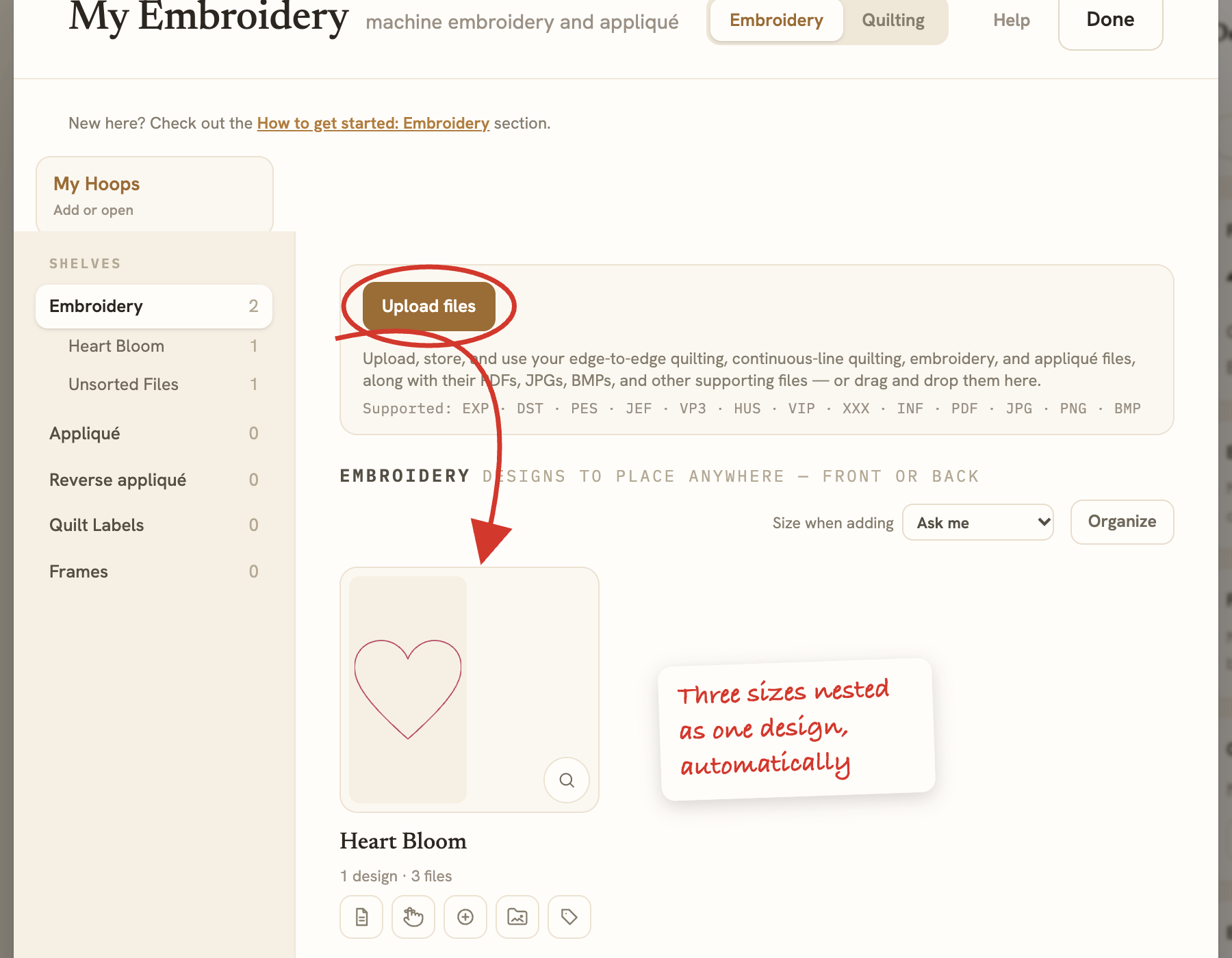
Upload your own embroidery, appliqué and edge-to-edge purchases
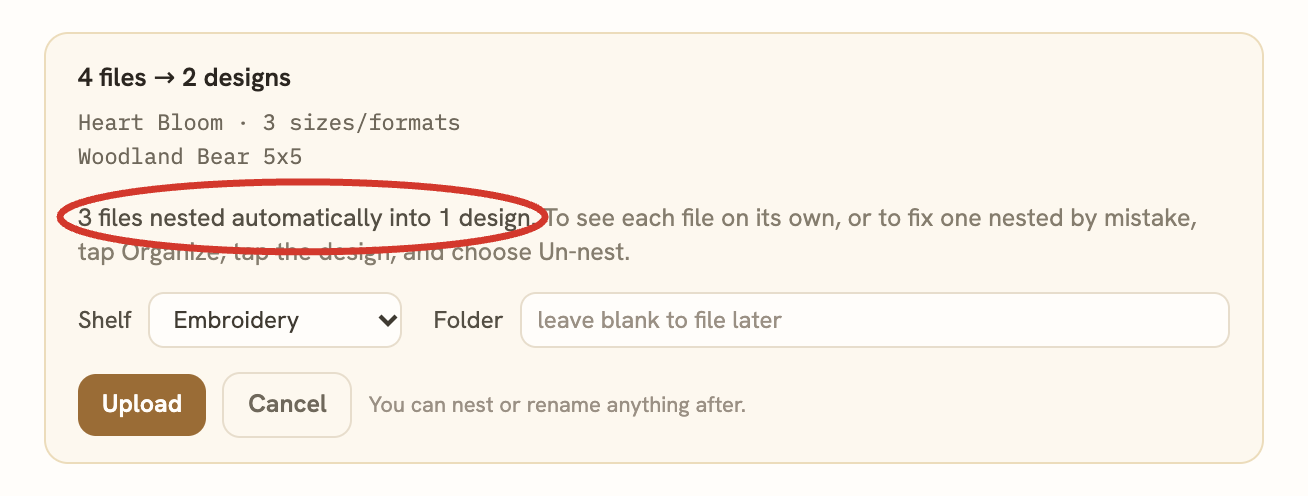
Pick the shelf the files belong on, tap Upload files, and choose everything that came with the set: every size, and every format you'll use. Files that are the same design in another size nest together on their own, and the review card tells you so. Every other file becomes its own design.
Tip: You can also drag the files, or the whole folder they came in, onto the Upload files bar. A dropped folder opens by itself and its files go to the same review card. Use this when a download's folder is named like a stitch file (12513.exp) and your computer's file window offers it as one file instead of opening it.
A review card shows what the upload becomes before it goes in: how many designs, which shelf, and the folder the filenames suggest. Type over any of it, or leave the folder blank to file things later.
Tip: Sewing a Bernina? Upload the set's .inf color files together with the EXP stitch files. An EXP file has no color of its own, so the .inf file is where the designer's thread colors are. Without it, the preview shows stand-in colors. You can leave the set's .bmp pictures out: StitchBlock draws its own. When you download an .exp, a fresh .inf color file and .bmp picture come with it, with the threads you chose. Keep all three together on your USB stick.
Nest same design with multiple sizes together
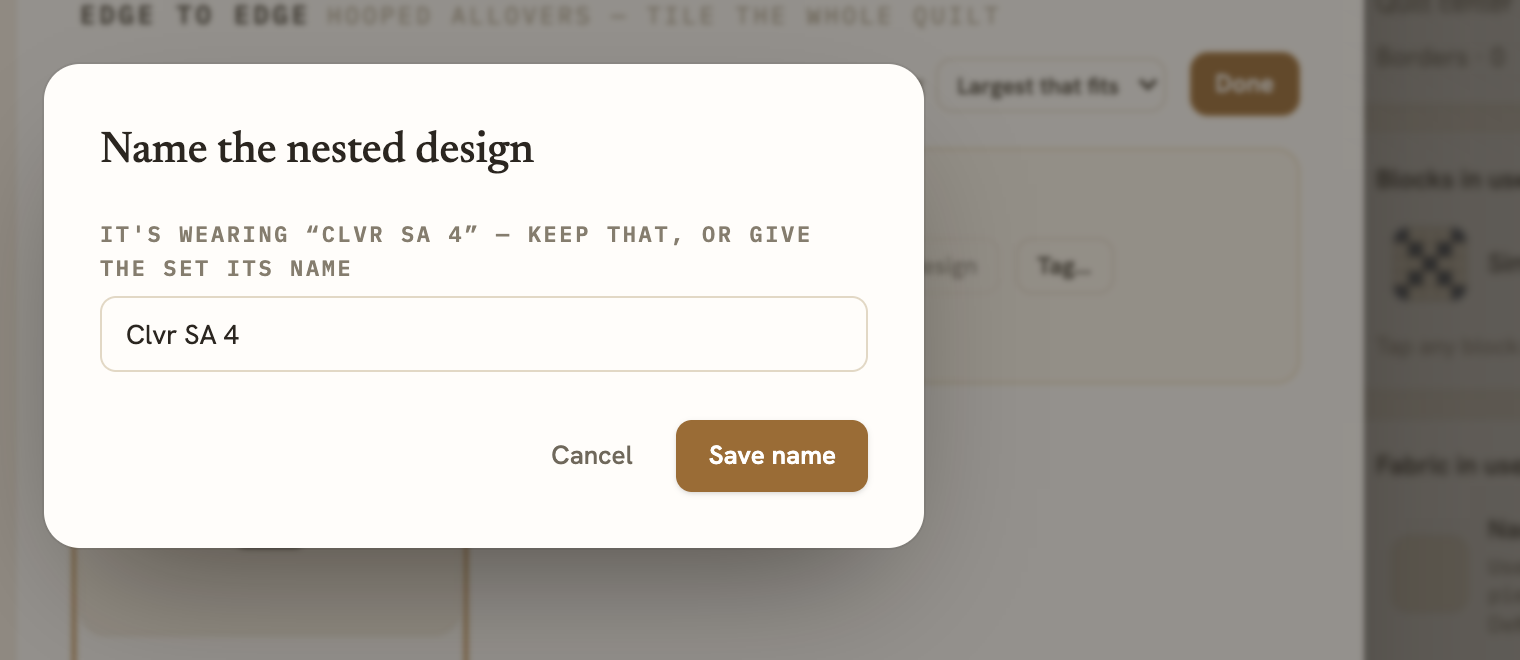
Sometimes one design's sizes or formats come in as separate cards. StitchBlock could not tell they belong together, or the seller named the same design several ways (clvr_SA_4 here, clvr_SB_5 there). Tap Organize, tap the cards that belong together, and choose Nest into one design. Your files stay whole. Nesting only groups them under one card.
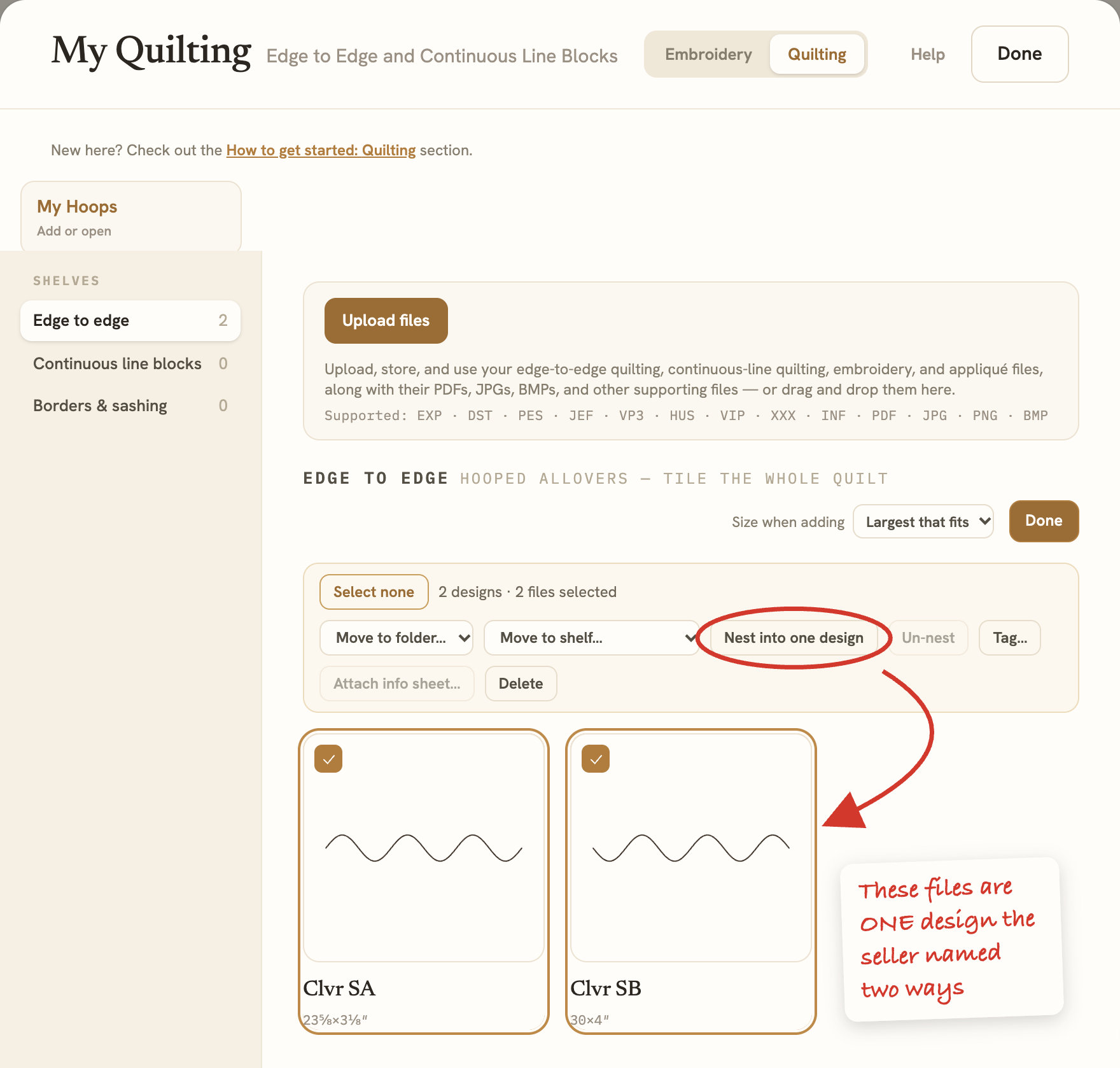
The nested design takes the first card's name, and a box opens right away so you can rename it. Keep that name or give the set its real name. Every file keeps its own name underneath. That's how you tell the SA half from the SB half at the same size. Only the design's name changes.
Un-nest a design
Would you rather see each file on its own card, or did files nest that don't belong together? Tap Organize, tap the design's card, and choose Un-nest. To take out only some of its files, open the design first, tap Organize, tap those files, and choose Un-nest selected. Nothing is deleted; each file becomes its own design again, in the same folder.
Folders say which set; tags say what it is
A folder is the purchase: the set's designs stay filed together. Open a folder to rename it or remove it. Renaming never deletes a file, and remove folder only takes the designs out of the folder: they stay on the shelf. Be careful with delete all, which deletes the folder and every file in it.
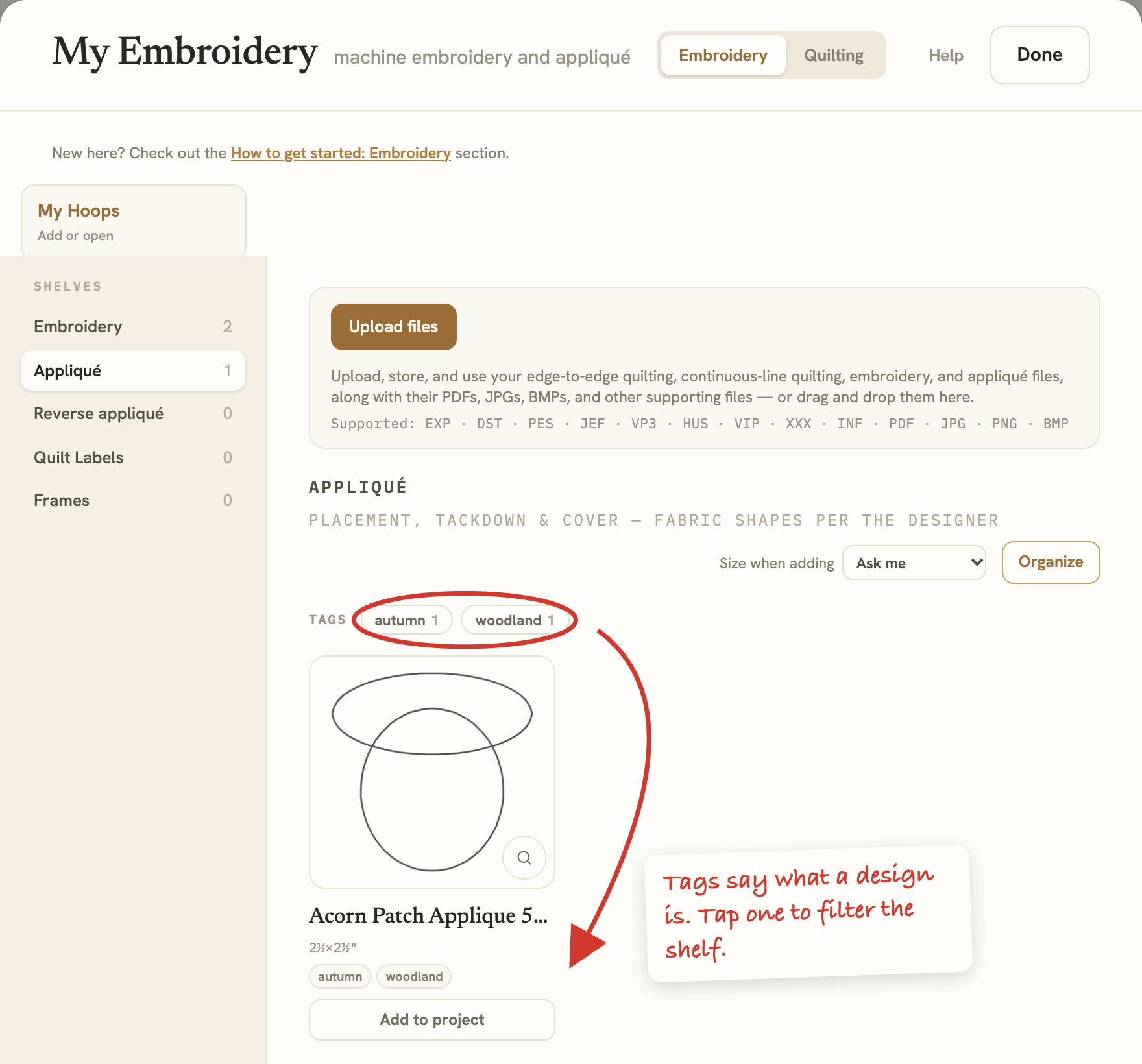
Tags are for finding things once the shelves fill up. To tag a whole folder, tap the tag icon under its card and type what the set is. To tag a few designs, use Organize: tap them, tap Tag…, and type what they are. Tap a tag chip to show only the designs with that tag.
Inside a design you can rename it, and every size and format comes along. You can also move files to another design, delete a file, or tap Nest as new design to make some files their own design. Uploads stay in your library until you delete them. Add to project is what brings a design into the quilt you're working on.
If you leave: removing your cloud backup
Maker backs your library up to your account so it follows you across devices. If your plan lapses, the backup stays on our servers, untouched and unreachable, until you subscribe again. Your library on this device keeps working.
If you would rather we did not keep it, tap your initials at the top right, choose Account & billing, and tap Remove my embroidery backup. The button is there only when your library is not being backed up. The stitch files, info sheets, folders and hoops that were backed up are deleted from your account straight away. Our backup copies of the files are erased within 30 days.
Our database backups keep a record of each design’s name, size and thread colors, never the stitch files themselves. Your library on this device stays exactly as it is, and subscribing again backs it up afresh.