Understanding the Libraries
The five libraries (Designs, Blocks, Fabrics, Embroidery, and Quilting) and how things join your project.
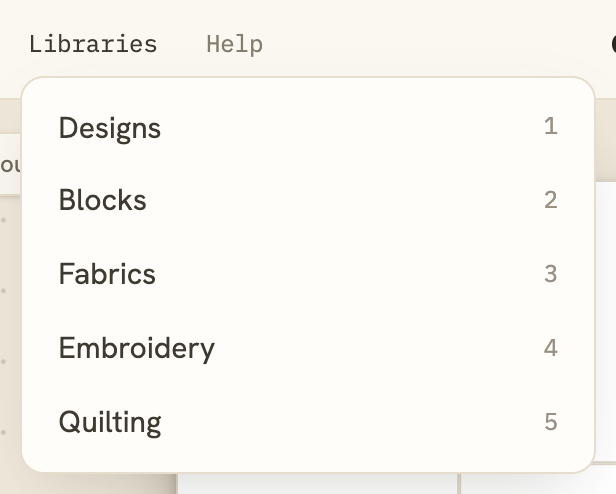
The Libraries menu in the top bar opens five libraries: Designs, Blocks, Fabrics, Embroidery, and Quilting. A library holds everything you could use; your project holds only what you’ve chosen. Nothing joins the project until you add it.
Blocks
Browse the Block Library and tap + Add on any block. The button changes to In project ✓ and the block appears in the Blocks panel on the worktable’s left rail, ready to arm and paint onto cells.
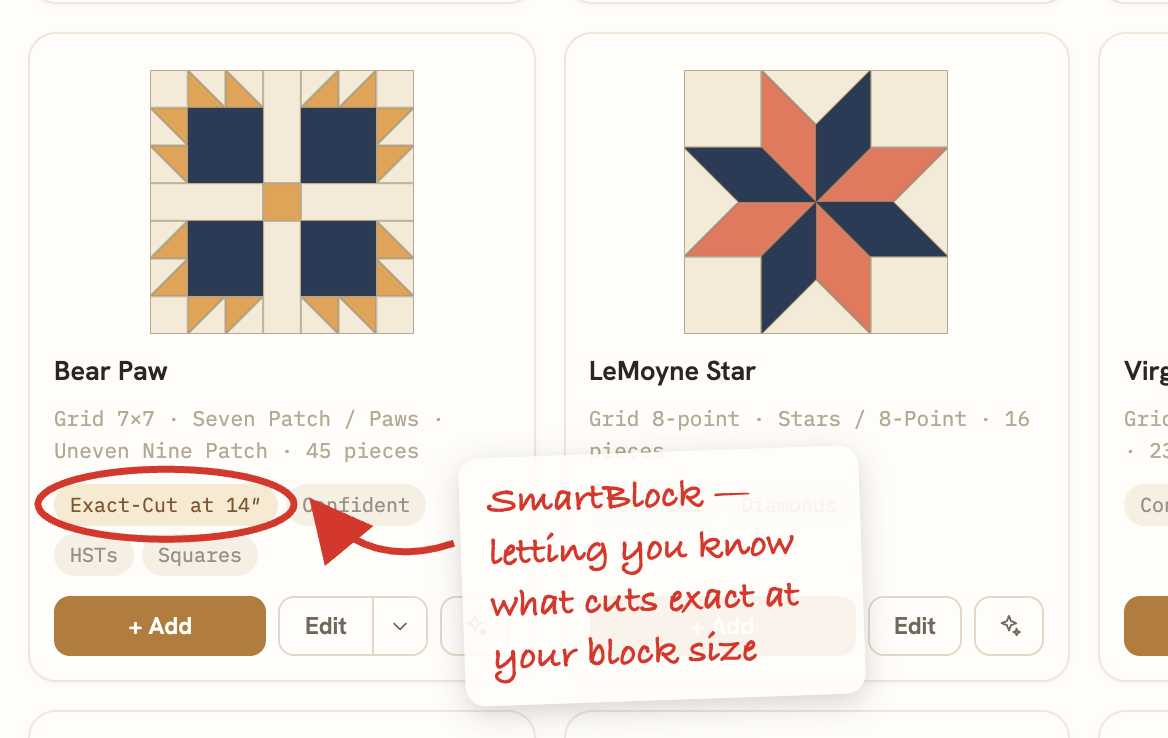
A block's card tells you how much sewing is in it. This Bear Paw's card shows 45 pieces, half-square triangles, and a Confident skill chip. The circled Exact-Cut chip comes from SmartBlock: at your quilt's current block size, every cut in this block lands on a standard ruler mark, with no rounding.
Tip: Read more on how SmartBlock can improve your quilt. See What is SmartBlock?
The Block Library is also where you make blocks of your own. The Block Creator button in its header opens the Block Builder, the Paths Builder, and Remix an existing block. See Create your own blocks.
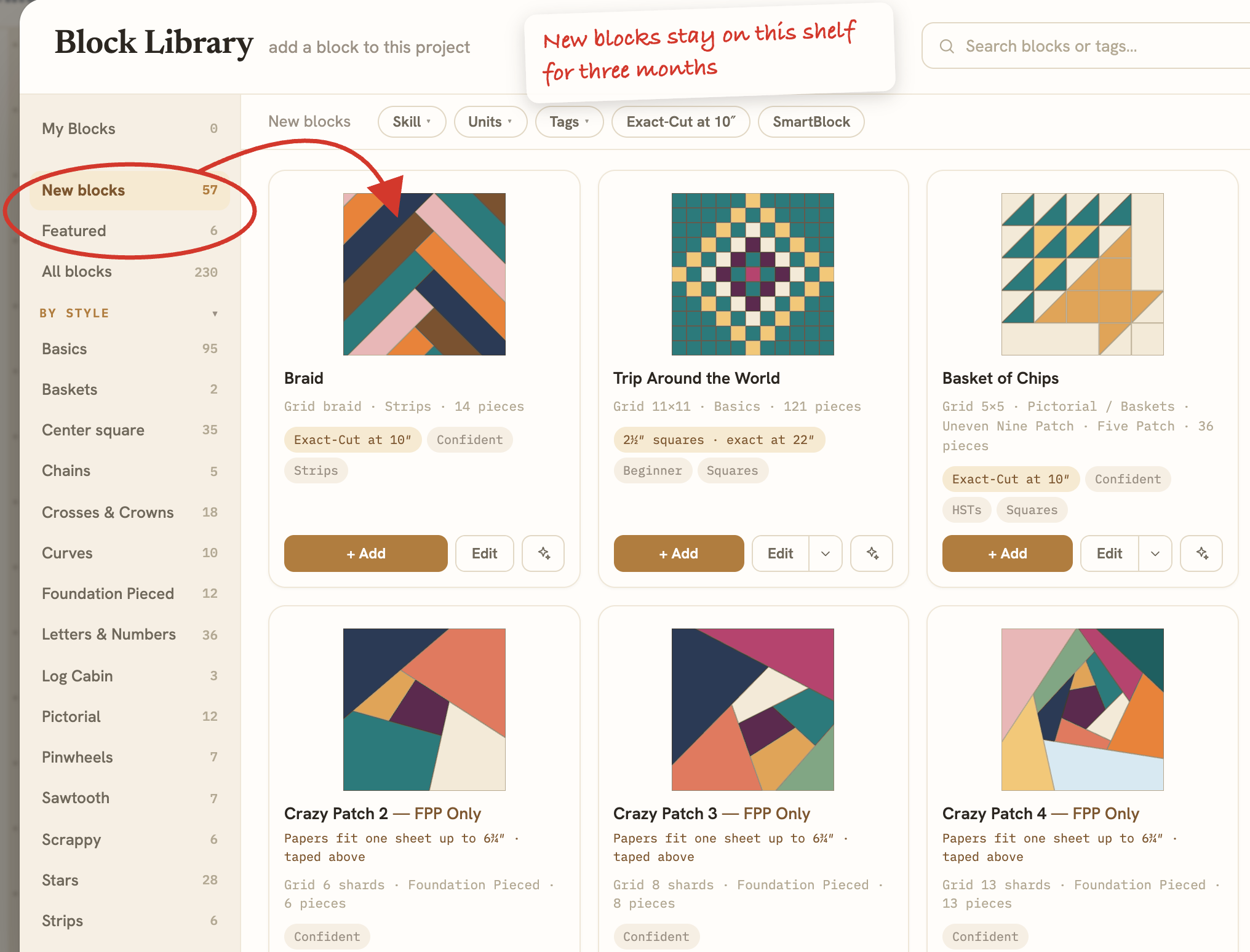
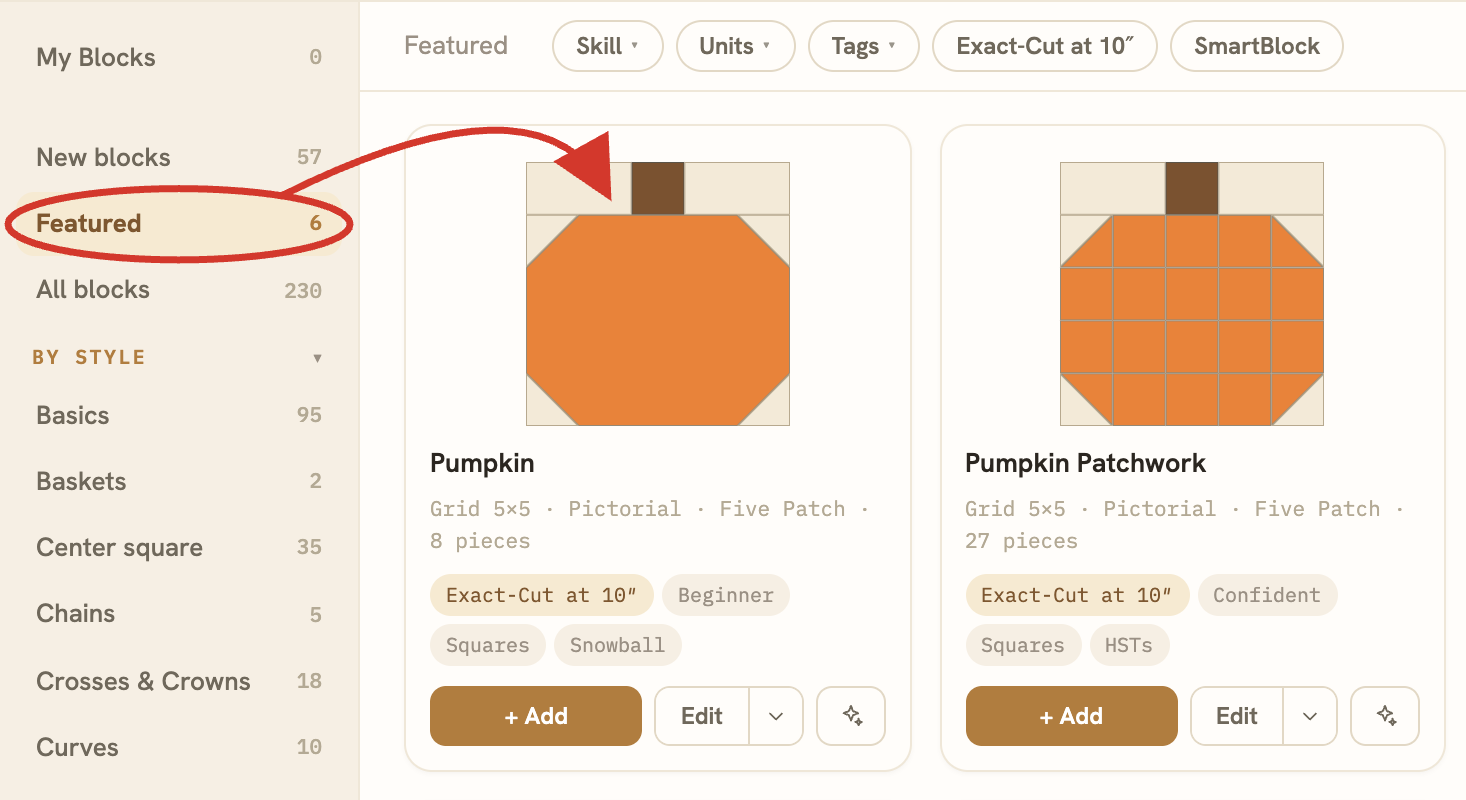
The left rail sorts the blocks onto shelves. My Blocks holds the blocks you made yourself. New blocks holds the blocks released in the last three months, newest first. Featured holds a rotating mix of seasonal blocks and Kim’s favorites. Both sit above All blocks and show only while something is on them. Below All blocks, By style sorts blocks by their look (Basics, Stars, Scrappy, Letters & Numbers and the rest) and By grid by the grid they are drafted on.
Fabrics
The Fabric Library works like a shop counter: pull fabric by fabric with + Pull, or take an entire collection with Pull all. Your pull gathers in the bar along the bottom. Nothing joins your project until you keep it. The buttons at the bar’s right end decide what happens next. Try them on deals the pull onto your quilt so you can see it there first. Add all to project keeps every pulled fabric in the project’s Fabrics panel. Clear puts every pulled fabric back.
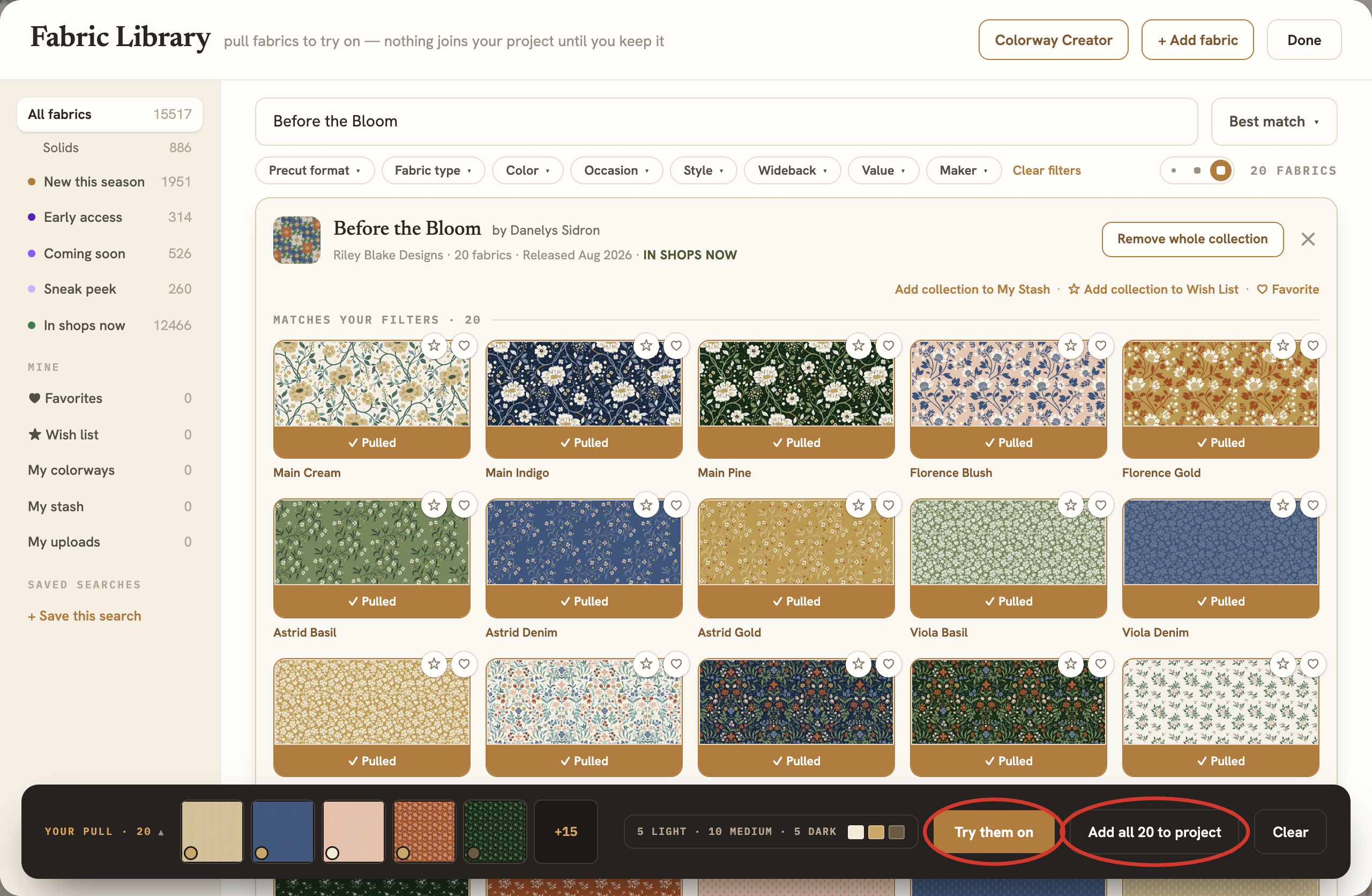
The left rail sorts collections by when they reach quilt shops, from New this season to In shops now. See Wish List and fabric news: coming soon, open for design, in shops.
Solids, under All fabrics in the left rail, gathers the manufacturers’ solid lines (Confetti Cotton Solids, Pure Solids, AMB Cotton Solids, Kimberbell Solids and the rest) and the house basics in one place. Prints that only read as solid stay under the Style filter, as Reads as solid.
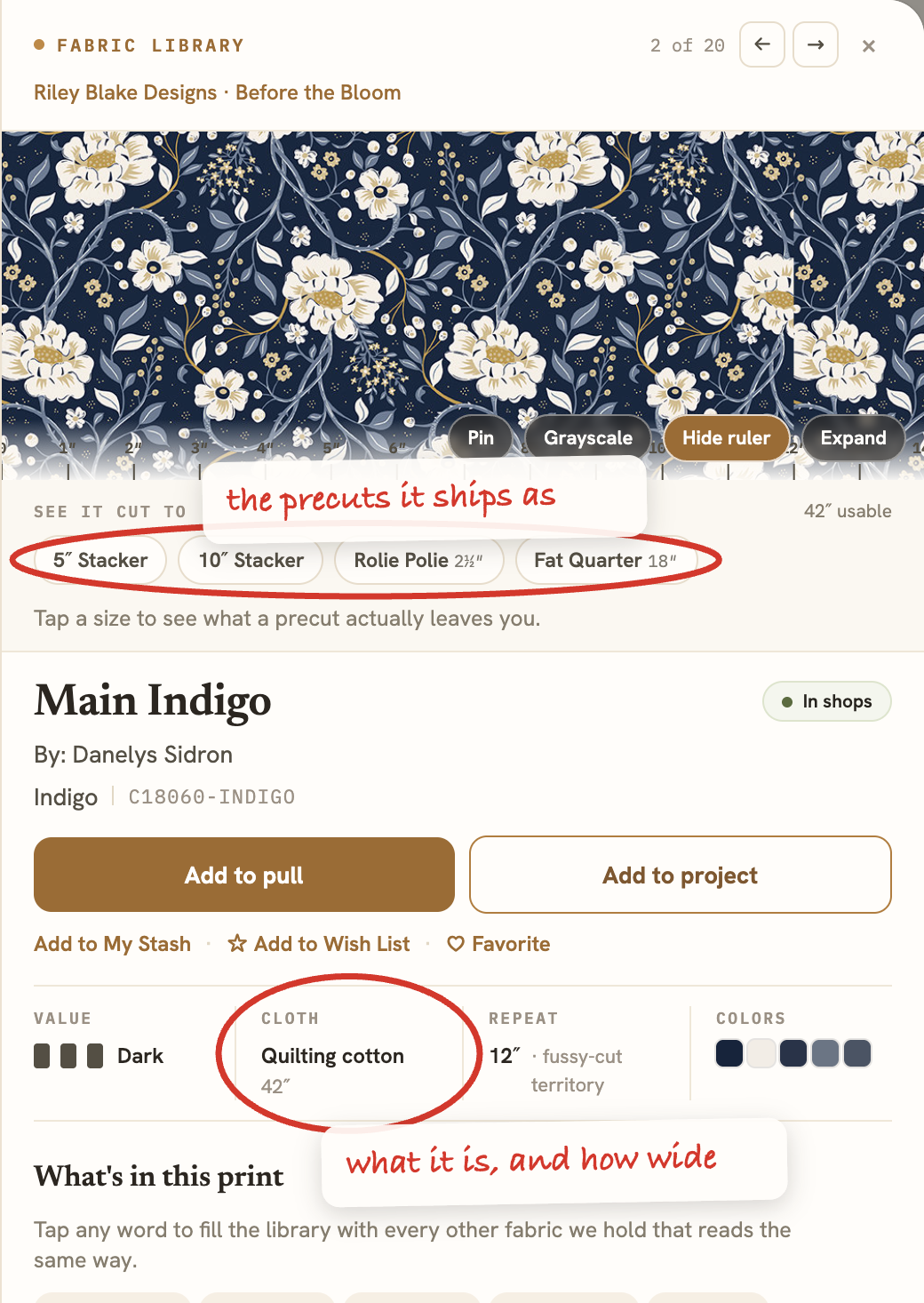
Tap any swatch to open its card. See it cut to shows the precuts available for that fabric. Tap a size to see what the cut includes.
Under the fabric name, Cloth shows the fabric type and usable width, with Repeat and Colors beside it. Add to pull puts the fabric in your pull, Add to project adds it straight to your project, and Add to My Stash saves it to My Stash.
Designs, Embroidery, and Quilting
Designs holds your saved designs: quilts you keep to grab quickly in any project. Your own saved designs come first, then the starter set. Below them is the Haberdashery shelf, where you find quilts other quilters have shared; see Share to the Haberdashery. The designs already in this project are listed in the Designs panel on the left rail, not in the library.
Embroidery holds your uploaded embroidery and appliqué files, and Quilting holds your uploaded edge-to-edge and continuous-line block files. Both add to the project the same way: add it in the library, then place it from the matching panel on the left rail.