Understanding the Worktable
The canvas, the top bar, the left rail's six panels, the two toolbars, the paint pill, and the Inspector's five tabs.
StitchBlock Worktable Introduction | Beginner Tutorial 01 Watch on YouTube, bigger and with chapters
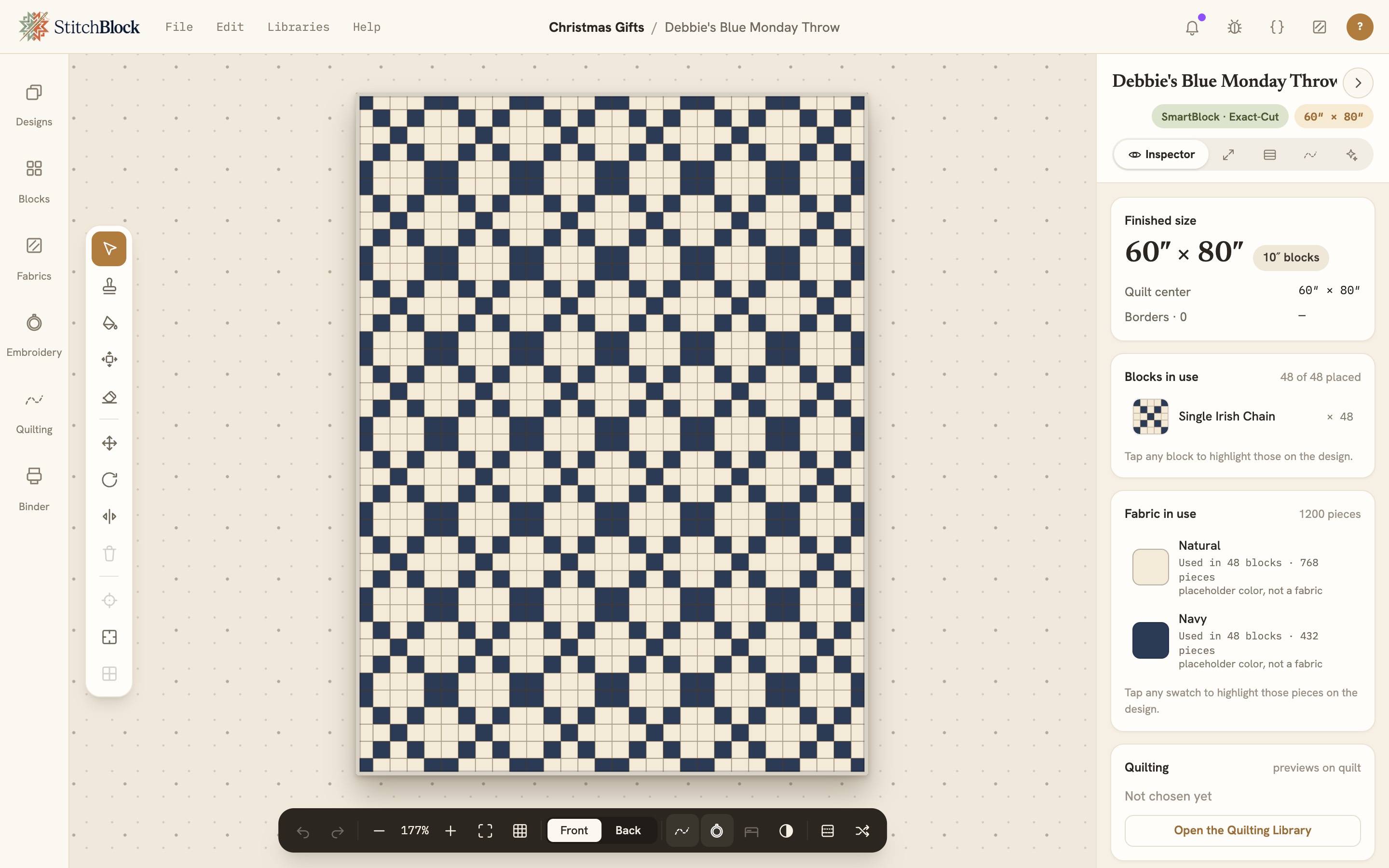
The worktable is one screen with five regions: the top bar, the left rail, the tool palette, the command dock under the quilt, and the Inspector on the right. Here it is with a quilt underway:
The top bar
The top bar holds the menus (File, Edit, Libraries, Help), the project and design names (tap either to rename), and the bell that opens What’s New. The sharing tools are at its right end: the embed publisher and the Share button. Your account menu is beside them, with My Stash, My Shopping List, and Settings.
Tip: When you find a Help page you’ll want again while you work, tap Save to shortcuts on that page. It is kept under My Help Shortcuts, where you can also keep notes and print.
The left rail: six panels
The rail on the left opens six panels: Designs, Blocks, Fabrics, Embroidery, Quilting, and Binder. Designs lists the designs in this project; tap one to open it. The next four are where you arm what you’re about to put on the quilt: a block, a fabric, an embroidery or appliqué design, a quilting design. Each holds what you’ve added from its library; see Understanding the Libraries. Binder is different: it leaves the worktable for the pattern documents you print.
Tip: A panel closes the same way it opened: tap its rail icon again, or the ✕ in its corner.
The tool palette: what your next tap does
The floating toolbar beside the canvas decides what your next tap does. From the top: Select, Stamp, Fill, Fussy cut, and Remove fabric, then Move, Rotate, Flip, and Delete, then Center, Merge, and Unmerge. It is one toolbar for everything.
Most tools stay on until you pick another, so Rotate and Flip turn each block you tap. Fill, Delete, and Unmerge do their job in one tap. Picking a fabric from your Fabrics panel puts the tool down for you, so your next tap paints. For every button one by one, on this palette, the dock, and the menus, see Tools of the Worktable.
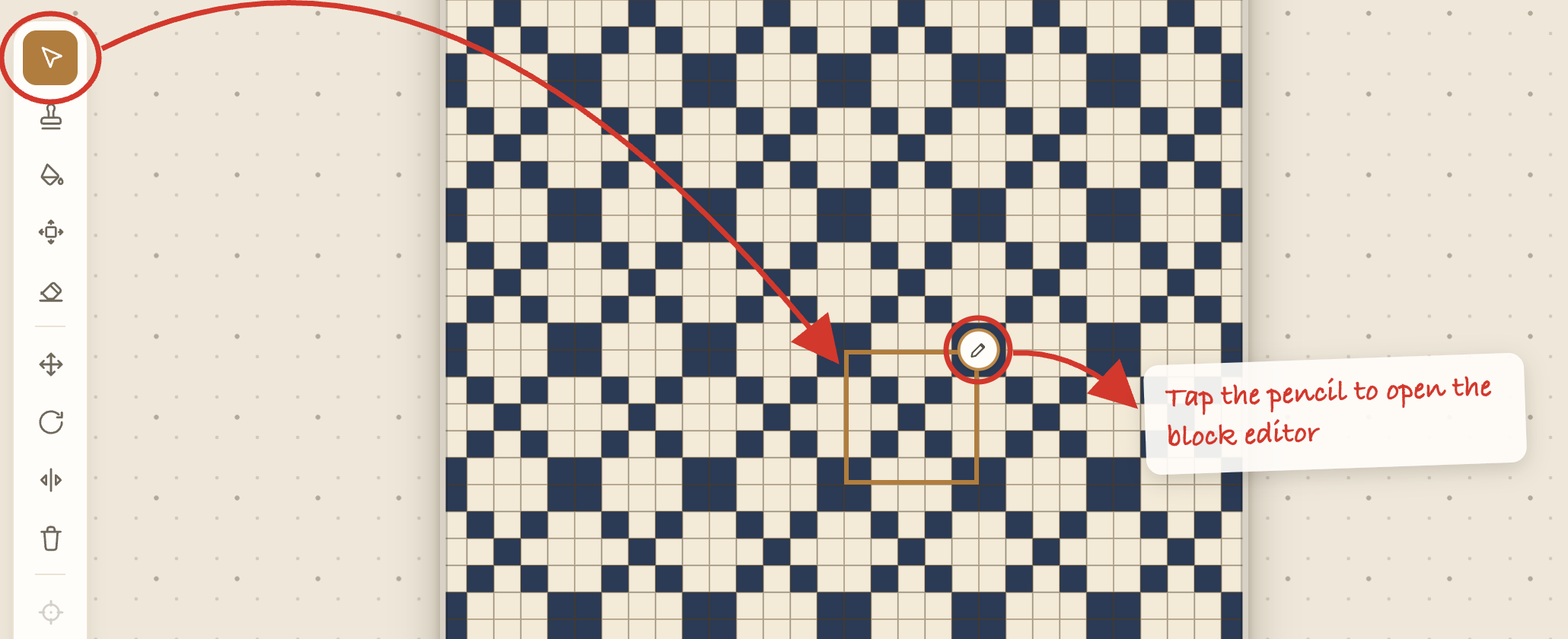
Above: with Select active, tapping a block highlights it. A ring appears around the block, Rotate, Flip, and Delete act on it, and the Inspector describes it. The little pencil chip on the ring’s corner opens the block editor. On a computer, a double-click does the same thing.
Tip: Tap a block to select it; tap it again (or press Esc) to put the selection down. On a computer, double-clicking a block is the shortcut into the block editor.
The command dock: the worktable’s controls
The dark bar under the quilt is not a tool. It is the worktable’s control panel. From the left: undo and redo, zoom and fit, inch rulers, and the Front/Back slider (the back is where you see the backing and its seam diagrams). Next are the buttons that show or hide the quilting, the embroidery, and the bed, then the Black & white view, Ombré, and Scatter Fabrics. The palette decides what a tap does. The dock works on the whole worktable.
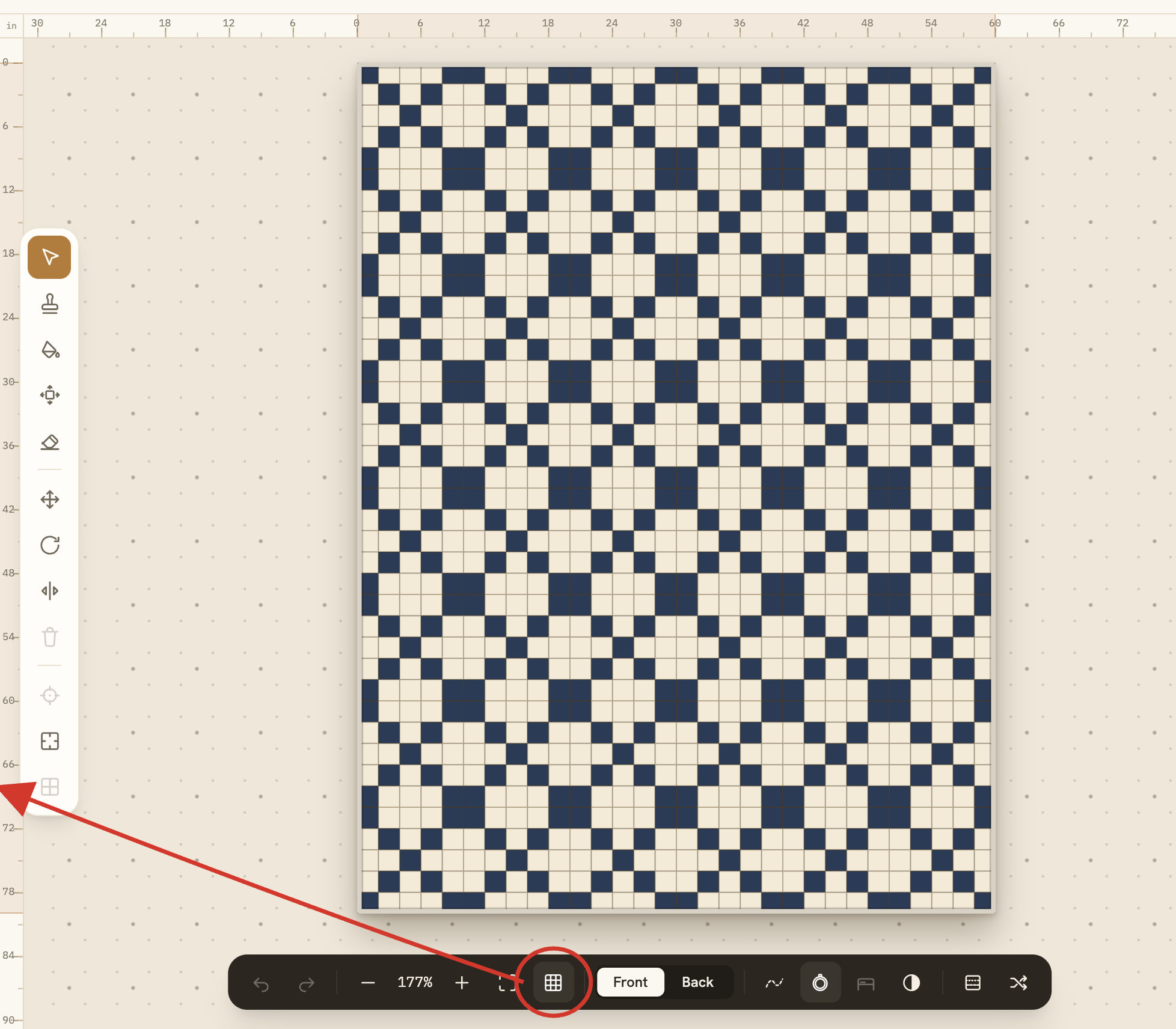
Tip: The show and hide buttons on the dock all work the same way: tap to turn one on, and tap again to turn it off. Above, the inch rulers were just turned on along the canvas edges.
The paint pill: painting, and how far a tap reaches
Fabric works by arm-and-paint: arm a swatch in the Fabrics panel, then tap the quilt. The moment a fabric is armed, the paint pill appears at the top left of the canvas. Its round swatch shows the fabric you’re painting with, beside the word Painting.
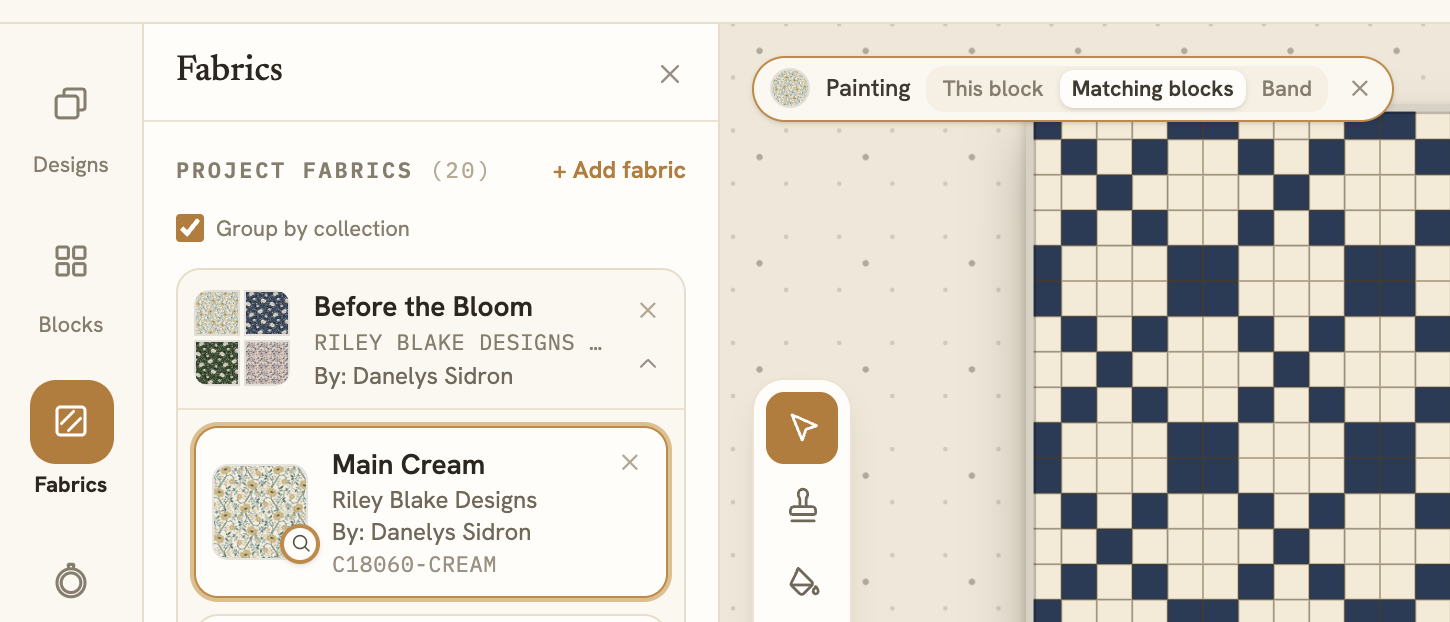
The pill has three reaches, and they decide how far each tap goes. This block is where every session starts. It paints only the very piece you tap, on only that block, and that block keeps its own colors from then on.
Matching blocks changes every piece doing the same job as the one you tap, on every copy of the block still sharing its colors, all in one tap. Band paints the whole band the tapped piece is in, such as a round or a row; see Bands: paint a whole round, row or diagonal in one tap. The full story, colorways included, is in Paint fabrics onto your quilt.
Tip: The pill’s ✕ only tucks it away. Painting stays on. Tap your armed color again, or press Esc, to stop painting.
The Inspector: five tabs
The Inspector on the right has five tabs:
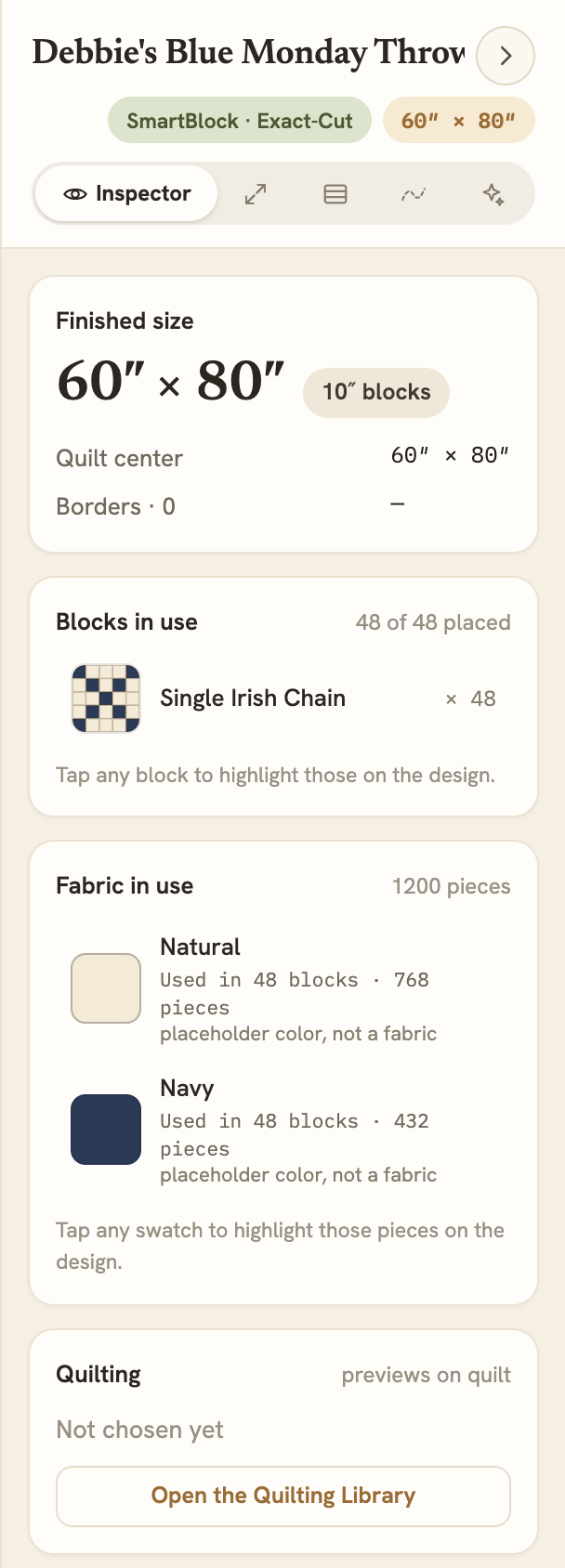
Inspector shows whatever is selected. With nothing selected it shows the design: finished size, blocks in use, and fabric in use. With a block selected it describes that block and has the Edit this block button.
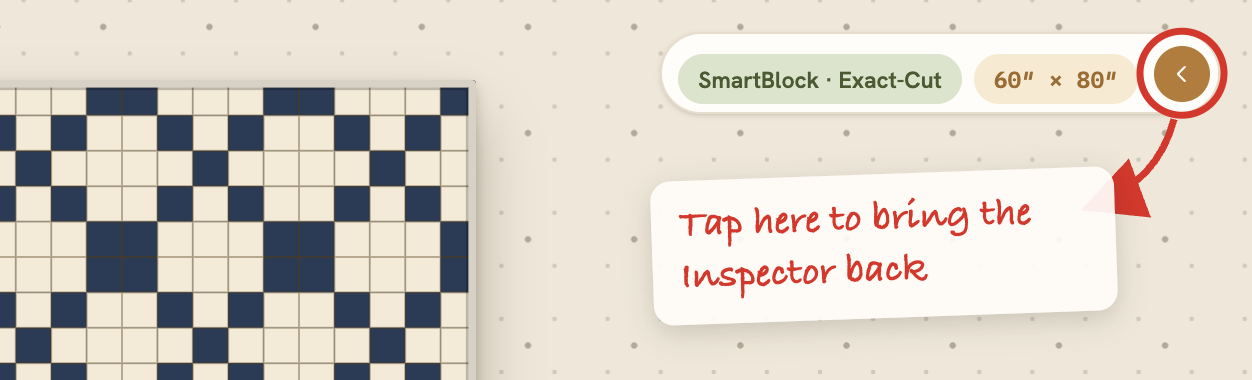
Tip: Need the room? The › beside the design name tucks the Inspector away. Its status pills (SmartBlock, Precut, and the finished size) move to the top-right corner of the canvas and work the same as before. The ‹ on that bar brings the panel back. The Inspector starts open and remembers your choice.
SmartBlock is everything about the blocks themselves. It has the Block set card (the quilt’s layout), quilt and block sizing, and Exact-Cut advice (whether the cuts land on standard ruler marks). It also has Fabric-Fit (whether precuts you have would cover the quilt), coping strips, and framing. See Change the layout and Will my precuts cover this quilt? (Fabric-Fit).
Layout is everything around the blocks: sashing, borders, binding, backing, and batting.
Add-Ons holds the decorative layers: quilting, embroidery and appliqué, and the quilt label.
Inspiration, the sparkle tab, has three sections. Show Me pictures your quilt on a bed or in a room. Picture It turns a photo into a quilt. Inspire Me has the app compose a quilt for you. See The Inspiration tab: Show Me, Picture It, Inspire Me.